Local Mocks & Mock Scenarios
The A2D IDE Extensions can run your A²D assets as local mocks. A local mock answers exactly like the mock A²D hosts for you, but it runs on your machine and makes no calls to A²D while it runs.
How Local Mocks Work
- Isolated: each mock serves its own frozen snapshot of the asset on its own port (for example
http://127.0.0.1:4101/...) and keeps its own request log - Faithful: REST scenario matching (priorities, AND/OR conditions on path, query, header and body), MCP over Streamable HTTP with input/output validation and structured content, and A2A 0.3 and 1.0 with agent card and tasks
- Secure: when an asset has authentication enabled in A²D, the local mock enforces it with credentials you set locally (Set Local Mock Credentials…). A²D never sends secrets to your machine
- Shared: VS Code, ACB and Studio see the same mocks, because they all keep their state in
~/.a2d - Detached: mocks keep running after you close the IDE, unless you enable stop on exit
Starting and Stopping Mocks
| To | Do this |
|---|---|
| Start one mock | Run locally on the asset card |
| Start several | Select assets and choose Run locally, or use Deploy local mocks on the A2D landing page and pick REST, MCP and/or A2A |
| Copy the endpoint | Click the endpoint shown on the running asset’s card |
| Stop one mock | Stop mock on the asset card |
| Stop everything | Stop all in the Asset Overview |
Editing Mock Scenarios
Edit mock scenarios opens the Mock Configuration editor. It looks and works like the scenario editor in A2D Cloud.
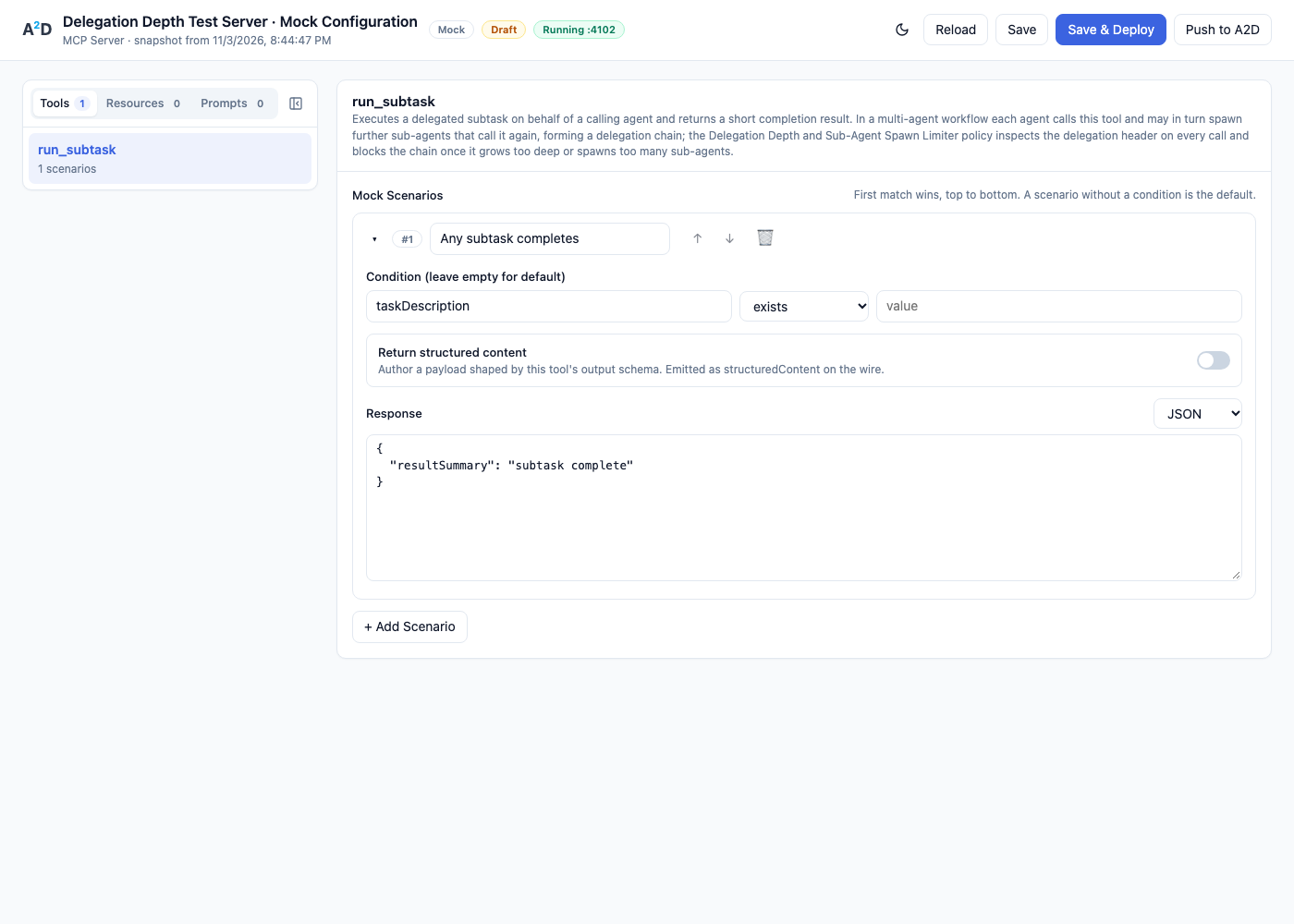
- MCP: Tools, Resources and Prompts tabs. Each scenario has a condition, optional structured content, and a JSON or Text response
- REST: per-operation scenarios with priority, AND/OR conditions on path, query, header, body and method, and a response with status, delay, headers and body
- A2A: endpoint URL, task status, and a Form or JSON result editor
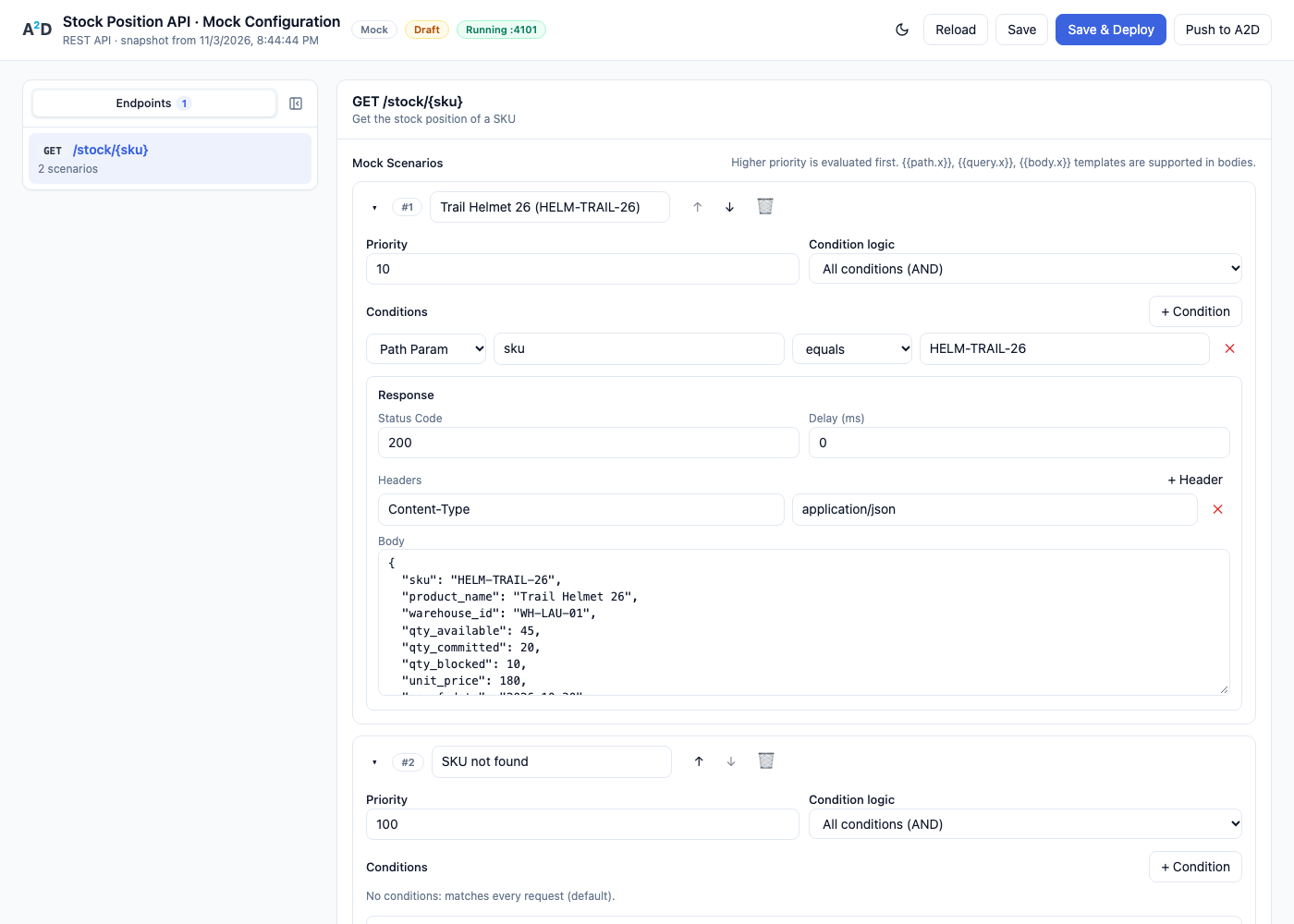
Scenarios are checked top to bottom and the first match wins. A scenario without a condition is the default.
| Button | What it does |
|---|---|
| Save | Save the scenarios to the local snapshot |
| Save & Deploy | Save and restart the local mock with the new scenarios |
| Push to A2D | Write the scenarios back to A²D. Only the differences are sent |
| Reload | Discard local edits and load the asset again from A²D |
An asset with unpushed edits is marked local edits. Local mocks and new scaffolds use your edited snapshot until you push or reload it.
Next Steps
- VS Code & Anypoint Code Builder — the VS Code / ACB extension
- Anypoint Studio — the Studio plugin
- MCP Mocking — design mock scenarios in A2D Cloud
Run your A²D mocks anywhere, even offline, and keep them in sync with A²D.